Send shift offers
Offer open shifts to workers and track their answers.
For organization managers· 1 min read· Updated Oct 15, 2026
Send an offer
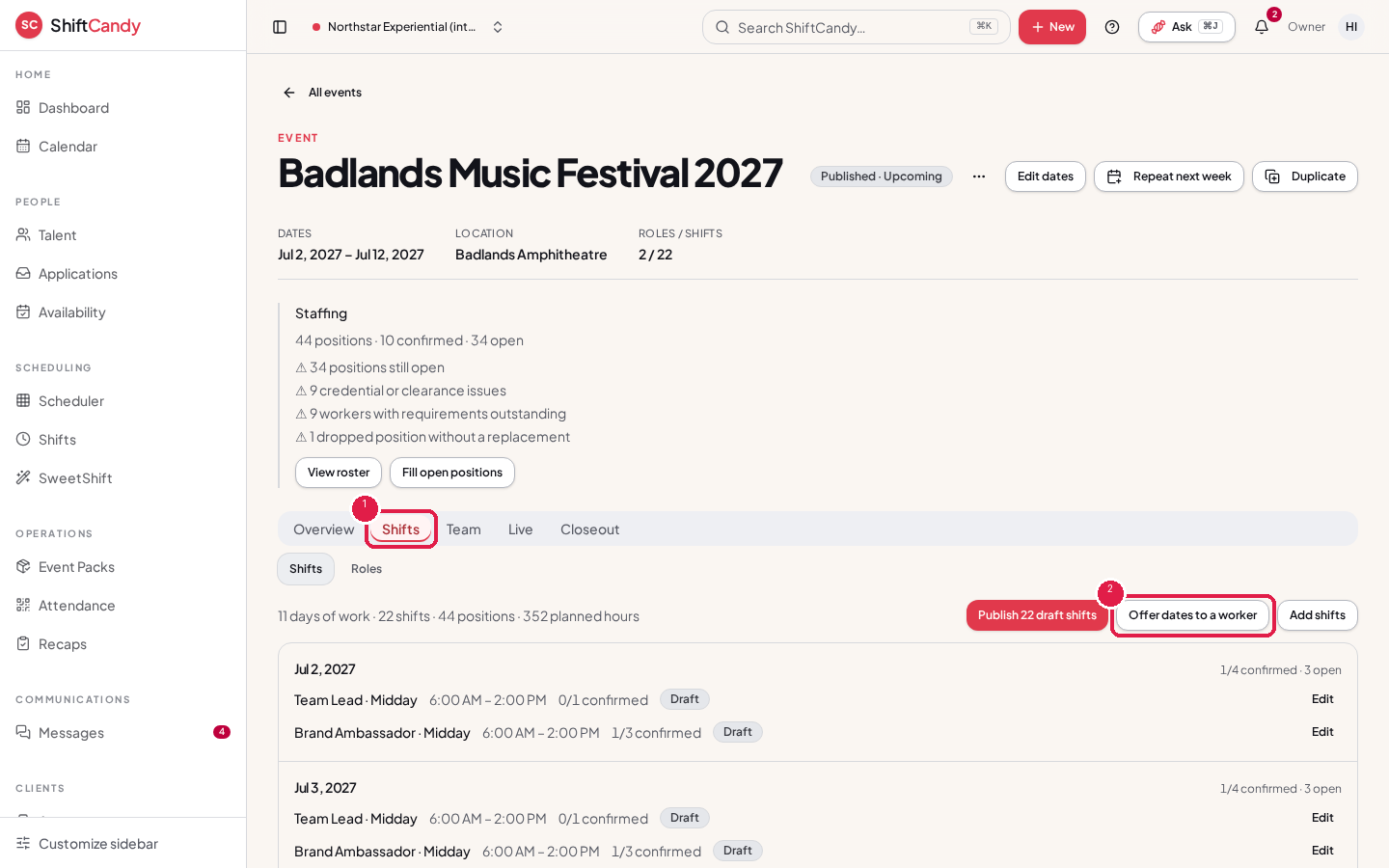
- Open the event's Shifts tab and use Offer dates to a worker. You can also offer shifts from Scheduler.
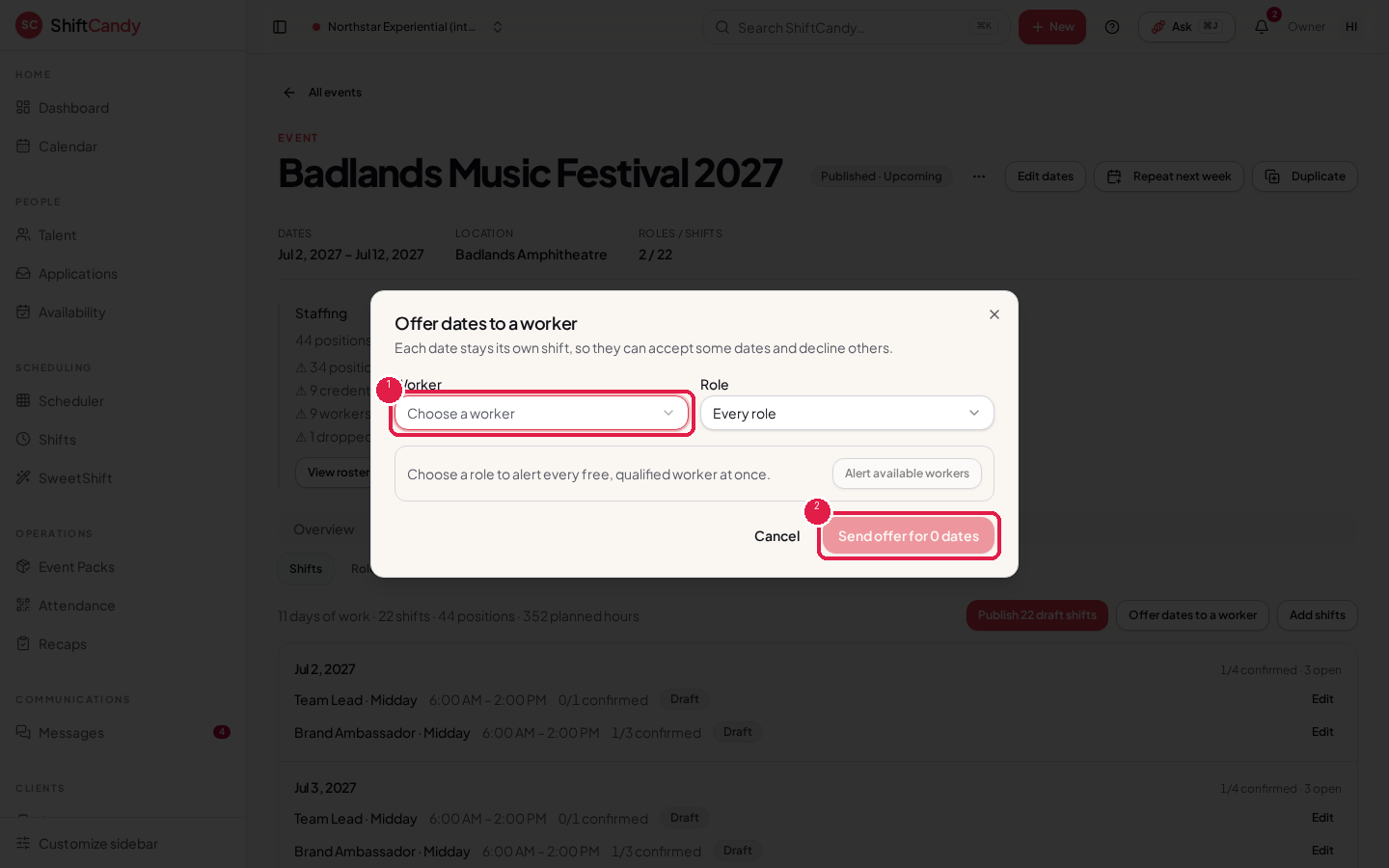
- Choose the worker, pick the dates, then use Send offer.
- Workers get the offer through your organization's message channels and can accept or decline from their phone.
Track and change offers
- Accepted offers become bookings.
- You can withdraw an open offer. Offers are never deleted, so the history stays.
- To cancel a confirmed booking, use Cancel booking. It can't be used once the worker has checked in.
Warning
If an event's automatic messages are paused, offers and reminders for that event are held back until you resume them.
Was this helpful?